This release introduces Processes, a new place to document business processes that go beyond GDPR, such as those related to NIS2 or DORA, or everyday processes like employee onboarding. We've also given processing activities a new look, so they work the same way as the rest of the platform. On top of that, you can now build your own formulas for calculated fields, add extra recipients to audits and hide the menu items your organisation doesn't use.
Introducing Processes
Processes is included in every paid plan, and on the free plan you can create up to five processes. To create your own process templates, you'll need the Templates and custom fields add-on. Risk assessments on processes require the Enterprise Risk Management add-on.
Processes is a new item in the main menu, built for documenting the business processes your organisation runs.
Processes and processing activities
Processing activities are built around GDPR, with transfers and your record closely tied to them. That makes them the right place for personal data, but not a natural fit for other kinds of processes. So rather than stretch processing activities to cover everything, we've given those processes a home of their own, with templates you can tailor to your needs.
Processing activities aren't going anywhere. When a process involves personal data, you can link the relevant processing activities to it, so you keep the full picture in one place.
Depending on how you use the platform, you might only need one of the two. If so, you can hide the other from the main menu, as described under Hide the menu items you don't use below.
How it works
Every process is based on a template, and our standard process template is ready to use from the start. With the Templates and custom fields add-on, you can also create your own process templates with your own fields under Settings in Process templates, just as you can for contracts, assets and legal entities.
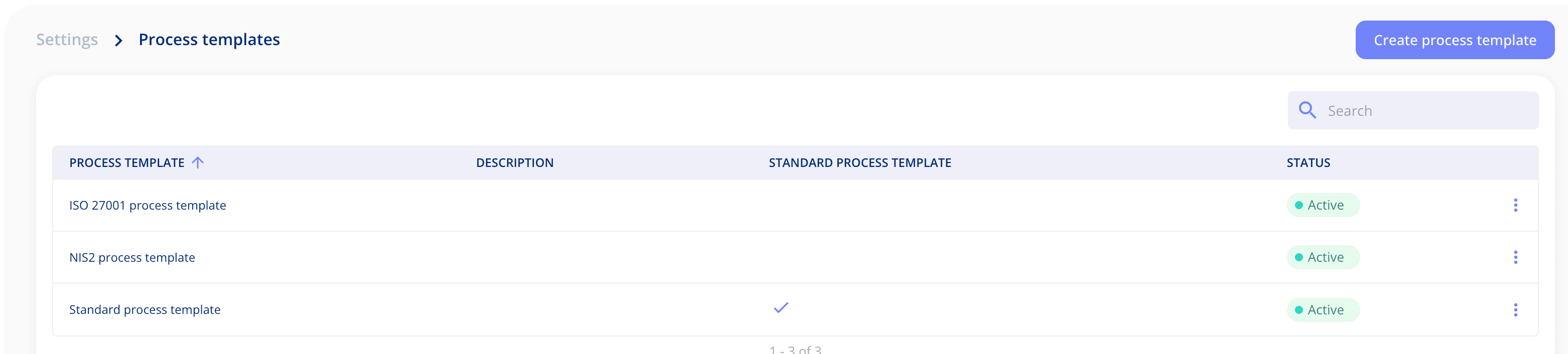
In each template, you decide which fields are required. You can also make a field required at creation, so it has to be filled in before the process can be created at all.
Templates also let you choose which steps a process includes, and in what order. Under Manage steps, you can drag the steps into the order that suits you and edit or delete them. In your own templates, you can add new steps as well. Process and Access are always included.
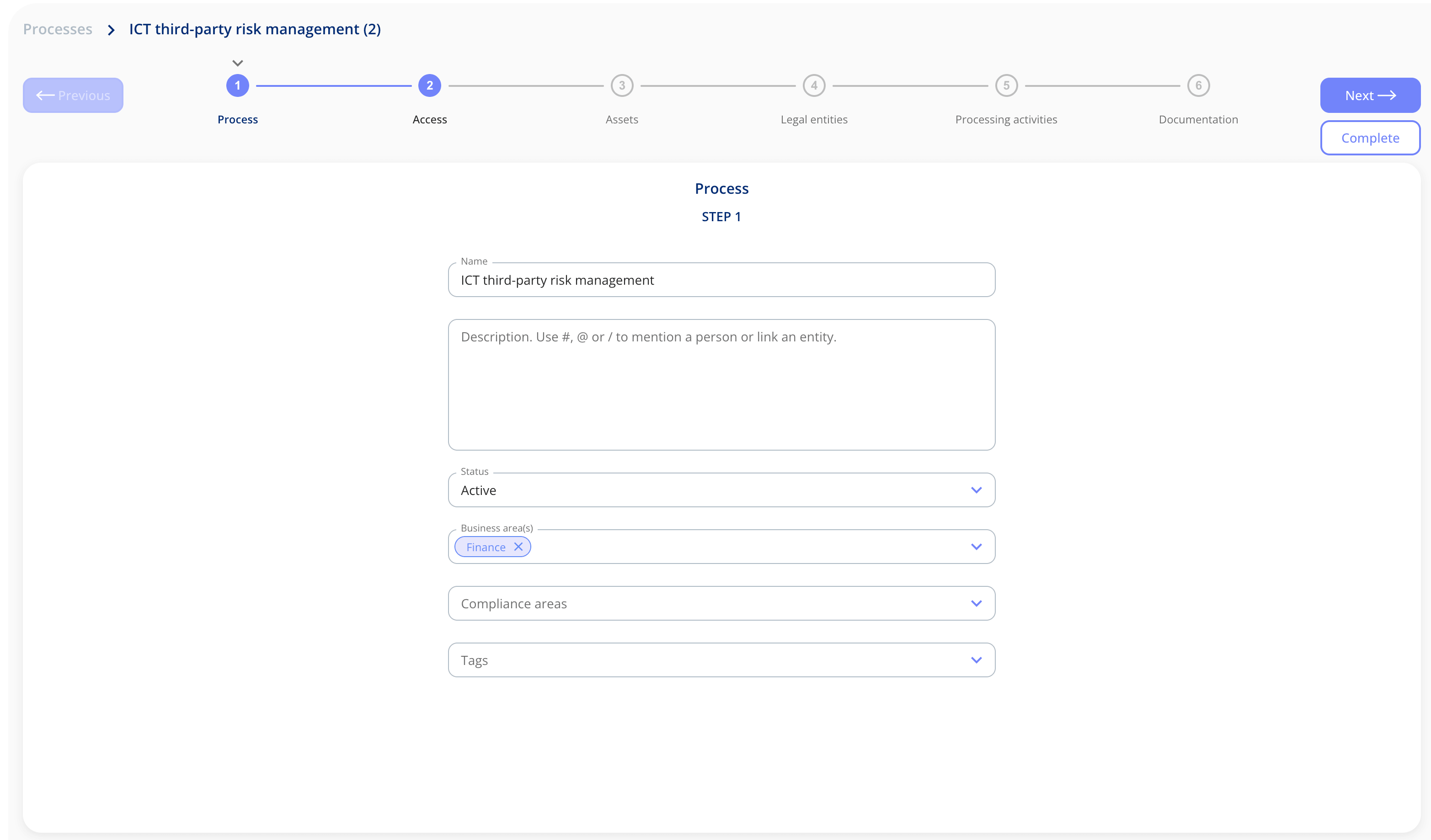
When you create a process, a guided flow takes you through the steps in its template. The standard process template includes six:
- Process: the core information about the process.
- Access: who can see and work with the process.
- Assets: the assets involved, along with the suppliers linked to each one.
- Legal entities: the legal entities involved, along with their subcontractors.
- Processing activities: any processing activities connected to the process.
- Documentation: documents related to the process.
Once a process is set up, its overview page brings the key details together. You'll see the template, status, owner, business areas, compliance areas, tags and risk level, along with the linked assets, legal entities and processing activities. Tabs at the top take you to each part of the process, and below the summary there are tabs for documents, access and tasks.
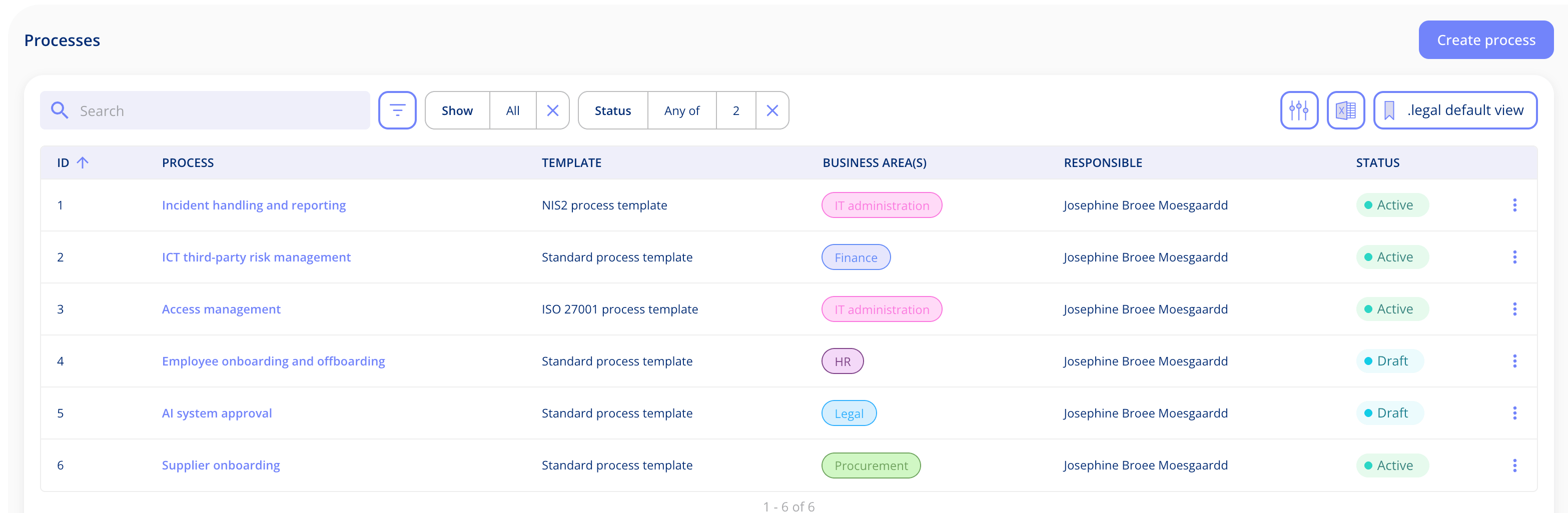
The process list shows the template, business areas, owner and status of each process, so you can quickly see which ones are active and which are still drafts. It has the same filters, column options, saved views and export you know from contracts, assets and legal entities.
Processes also work with the Risk module. You can run risk assessments on a process, and its risk level for each risk area is shown on the overview. Processes appear in the relationship graph too, so you can see how they connect to the assets, legal entities and processing activities behind them.
A new look for processing activities
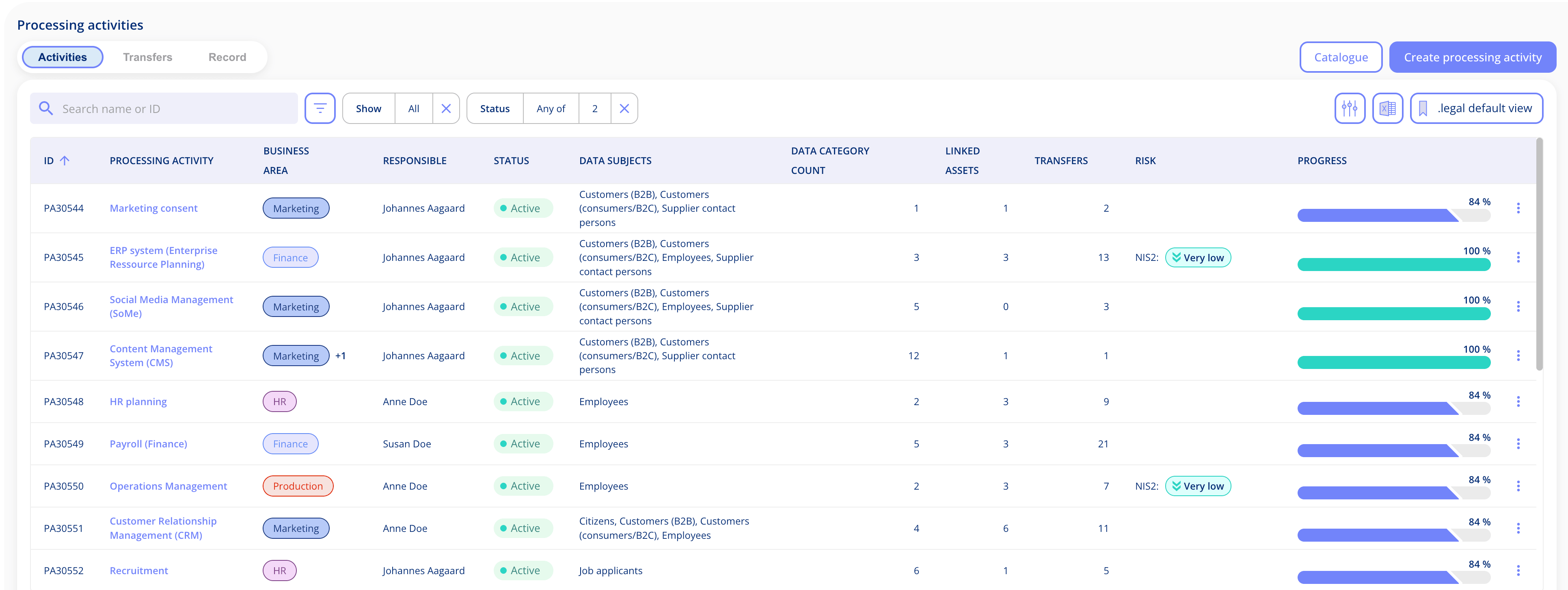
Processing activities now look and work like the rest of the platform. Processing activities, transfers and your record used to sit under a shared menu item. They now have their own place in the main menu, with a tab for each one at the top of the page.
Processing activities
The list now works like the other lists in the platform. You can filter it, choose which columns to show, save your own views and export what you see. We've also added a set of standard views to get you started, replacing the old custom lists.
The buttons for creating a processing activity and opening the catalogue have moved from the bar at the top of the page to the top right corner. That frees up space, so you get to your content faster, especially on a smaller screen. We’ve made the same change on the other overview pages across the platform.
Transfers
Transfers now have their own tab, so you can see every transfer across your processing activities in one list without opening each activity. It comes with the same filters and column options, plus three standard views.
Record
The record works much as it did before. Choose between the data controller view (Article 30.1), the data processor view (Article 30.2) and an extended data controller view (Article 30.1), and filter by group company to see the record for a specific part of your organisation.
Build your own formulas in calculated fields
The formula editor is included in the Templates and custom fields add-on.
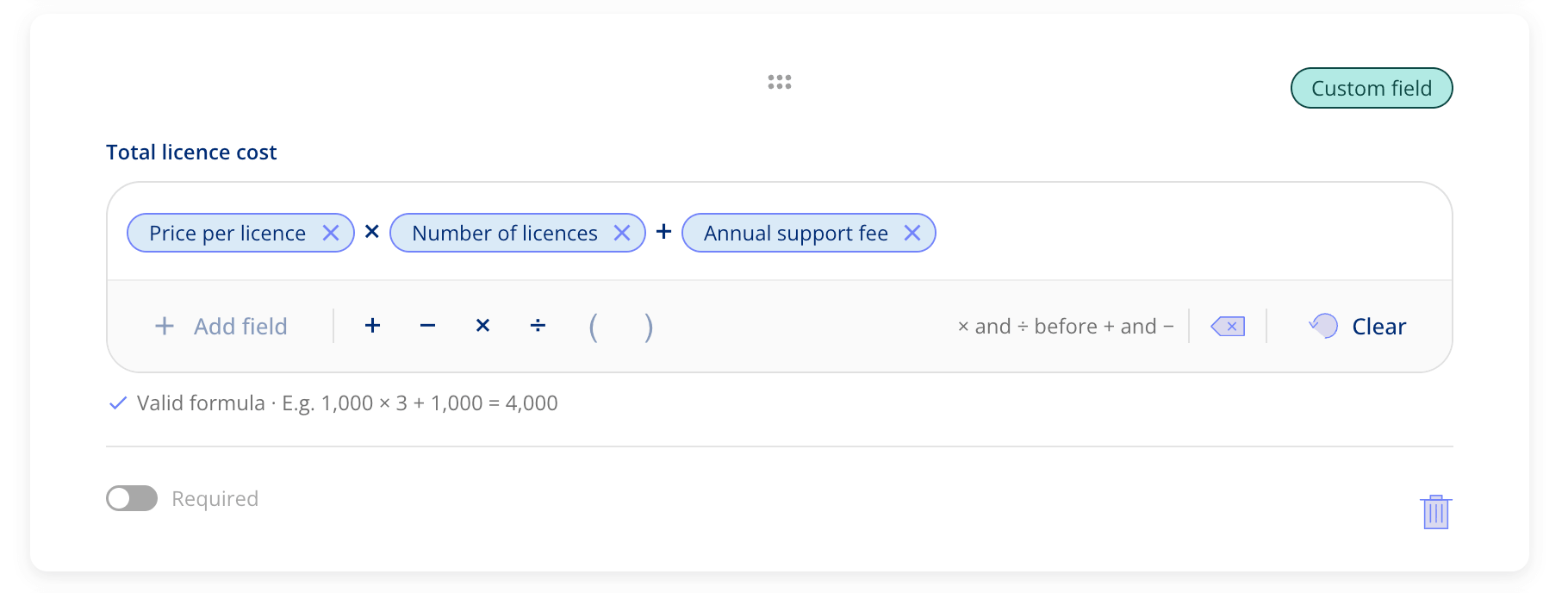
Calculated fields used to add amount fields together. Now you can build your own formula, combining amount, number and period fields with the calculation you need.
How it works
In the calculated field, select Add field or press Enter to open the field picker and choose the field you want to use. Then add an operator, such as plus or divide, and keep going until the formula is complete. You can use your mouse or the arrow keys on your keyboard, whichever you prefer.
Once the formula is valid, you'll see an example of the result below it, so you know what to expect before you save. On the entity (contract, asset, process or legal entity) itself, the field simply shows the calculated value.
Add more recipients to your audits
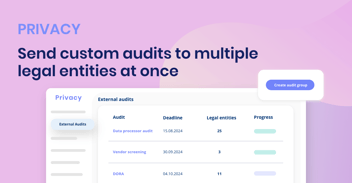
You can now send an audit to more than one contact at a legal entity. That's useful when you bring several audits together in one and different people are responsible for different areas.
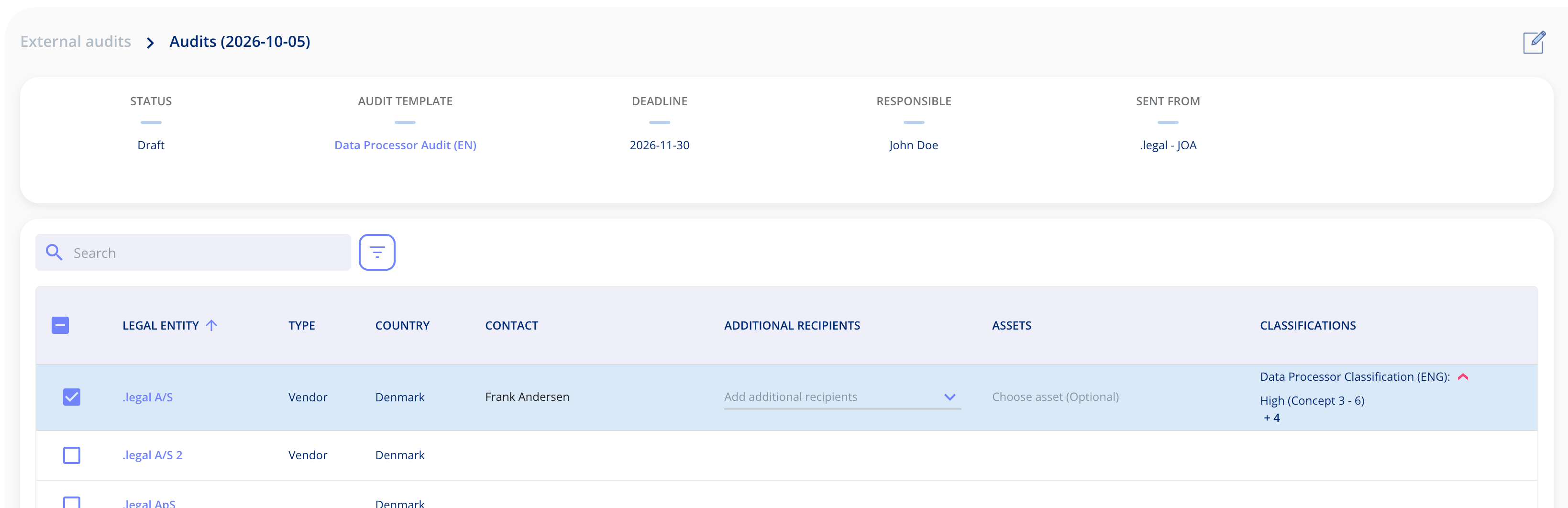
When you set up or edit an audit group, each legal entity in the list shows its contact person, who is the person named in the emails. In the new Additional recipients column next to it, you can pick more of the entity's contacts. They work much like CC on an email, receiving the same notifications as the contact person.
You can also add additional recipients to an audit that's already been sent, directly from the legal entity.
Hide the menu items you don't use
If there are parts of the platform your organisation doesn't use, you can now hide them from the main menu. Open Menu items under Settings and untick the menu items and sub-items you do not want to show. If you hide every sub-item under a menu item, the menu item itself disappears too. A preview next to the list shows how the menu will look before you save.
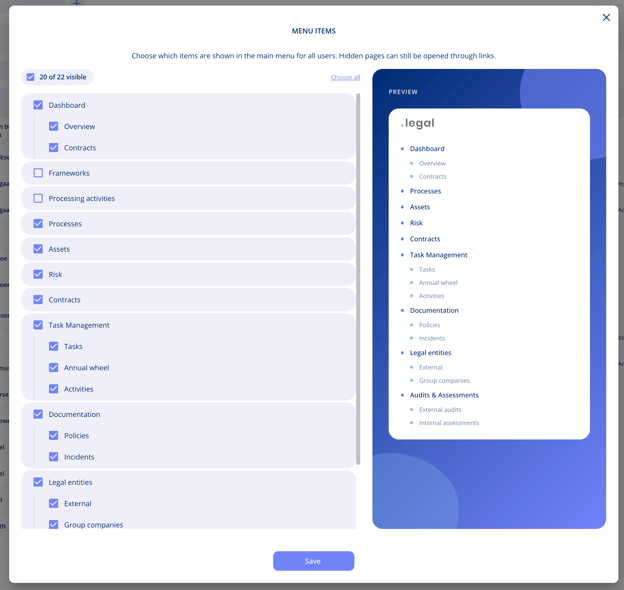
The change applies to every user in your organisation as soon as you save. Hidden pages aren't removed, so they can still be opened through links. To manage menu items, you need permission to edit master data, so it's usually set up by an administrator.
Got Feedback?
Your input helps us keep improving the platform. Please don't hesitate to reach out to our support team with your thoughts, questions, or suggestions. 🚀