
The asset module has had a major overhaul. You can now build your own asset templates, customise the fields and steps that matter to your organisation, and navigate the full assets overview with the same filters, views, and columns you already know from contracts. Here's everything that's new.
Custom Templates for Assets
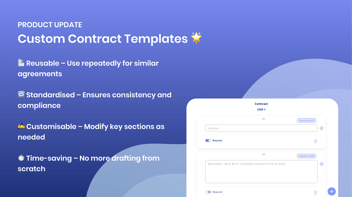
You can now create your own asset templates, just like you can for contracts. Templates let you define which steps and input fields appear when a new asset is registered, so every record follows the structure that works for your organisation.
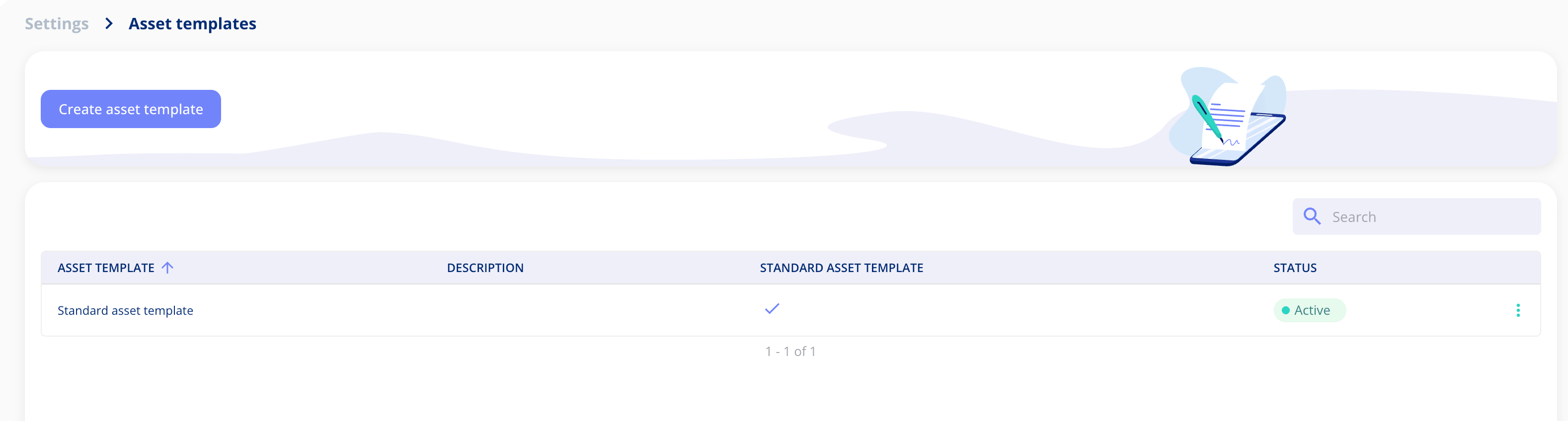
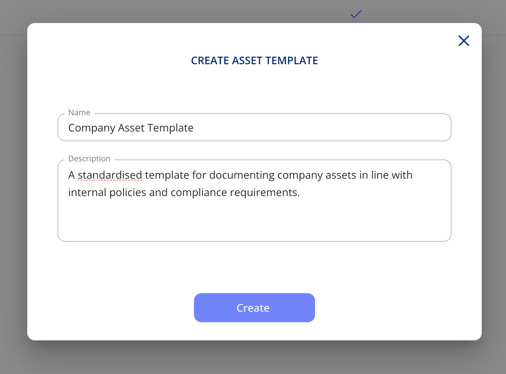
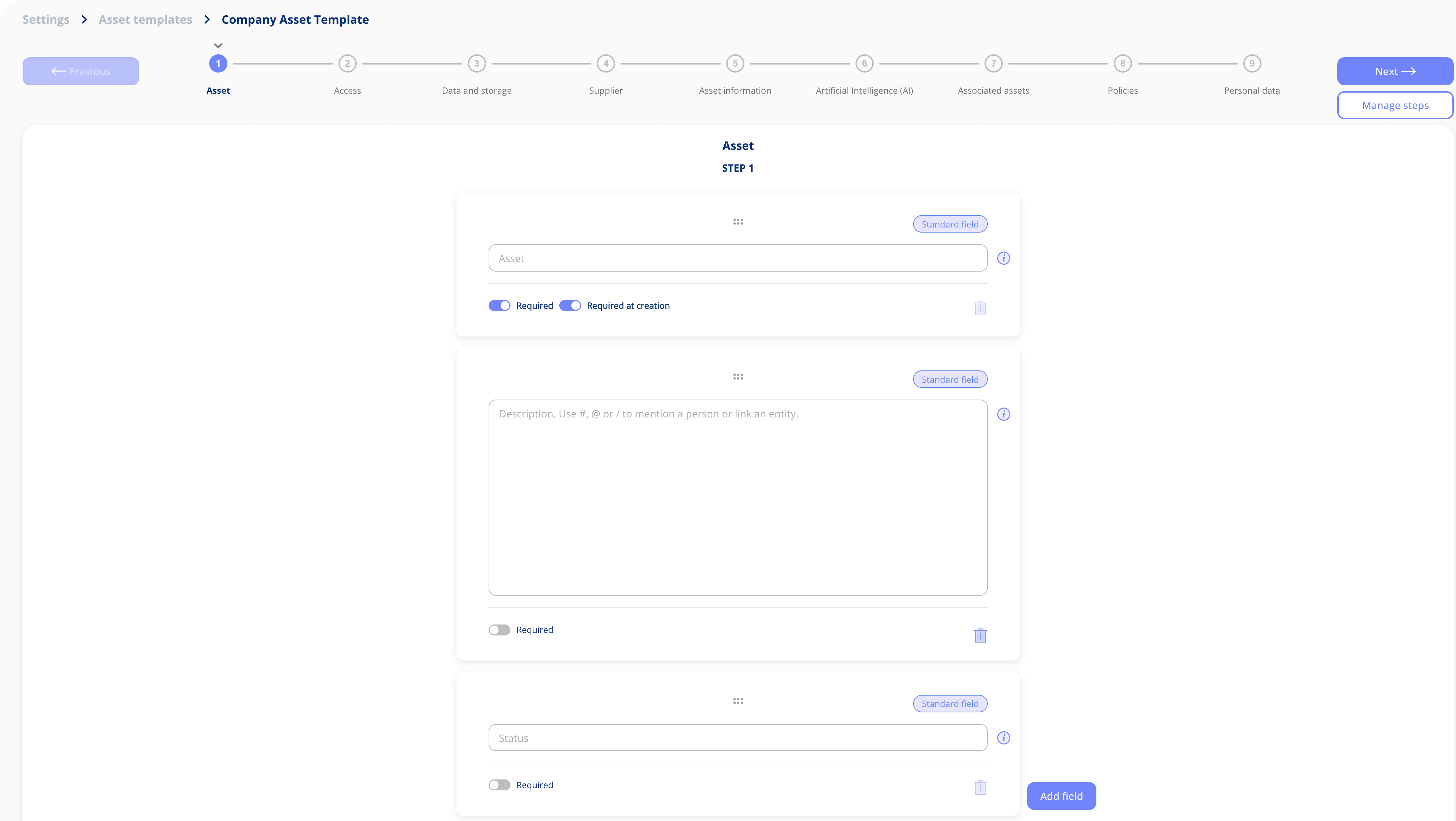
How it works: Go to Settings and open the new Asset Templates section. A standard template is available out of the box, covering all the default fields currently used on assets. You can use it as a starting point to build your own: reorder steps, remove fields you don't need, add them back if you change your mind, and include custom fields alongside the standard ones. Custom fields can be dragged into position just like everything else.
Edit template:
When you create a new asset, you'll be prompted to select a template, just as you would with contracts. The asset is then set up based on the template you chose, including any custom fields and step order you've configured.
Two steps can't be removed from any template: Assets, which holds the core record information, and Access, which controls who can see it.
Asset templates work exactly the same way as contract templates. Read more about template creation here.
Create Custom Input Fields for Asset Templates
Before building your asset templates, you'll want to set up the input fields you need. Asset input fields are the building blocks that define what information is captured when an asset is registered. They consist of standard fields and custom fields.
- Standard fields are predefined in the system and have a fixed meaning.
- Custom fields are fields you create yourself and assign your own meaning to.
Standard and custom fields can be grouped and sorted to appear in the order you want within your asset templates. Certain standard fields are mandatory and can't be removed.
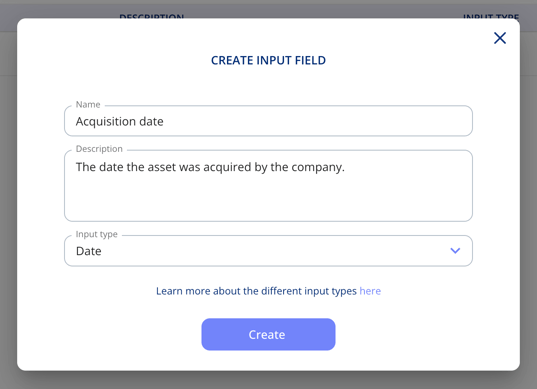
How it works: Go to Settings and open the new Asset Input Field section. Click "Create input field". Asset input fields work exactly the same way as contract input fields. Read more about input creation here.
Access Management on Assets
Assets now have dedicated access management, both as a step in your asset templates and as a tab on the asset detail view. Both work exactly the same way as on contracts.
The Access step lets you define who can see an asset by setting a responsible person, adding additional users, and restricting access by business area. You can also exclude specific users if needed, and choose whether the asset should be accessible to all users within the chosen group companies, or grant access across all group companies entirely. The chosen group companies with access are listed directly on the step, and can be added or removed at any time.
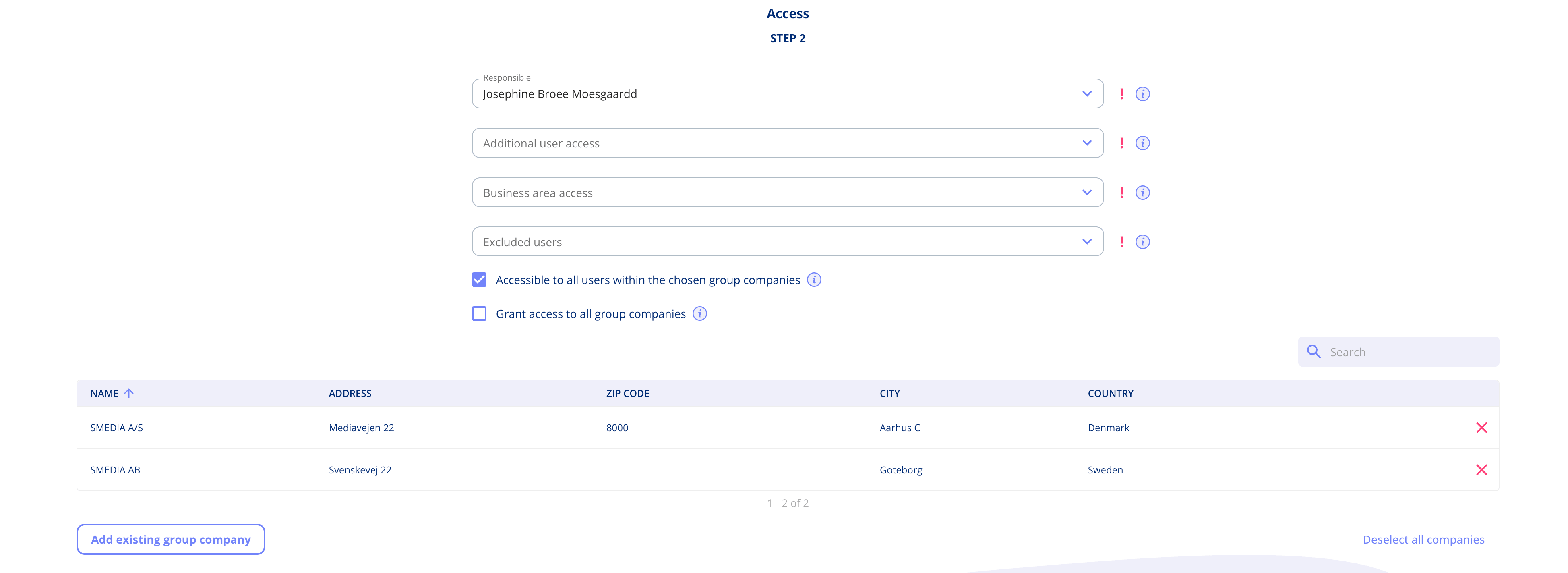
The Access step is required and can't be removed from a template, as it's essential for controlling visibility across your organisation.
New Asset Overview with Advanced Filtering
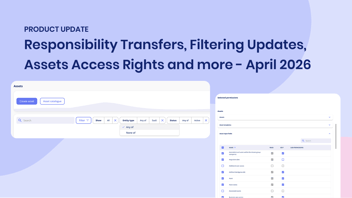
The asset overview has been redesigned to match the experience on contracts. New columns have been added to the standard asset list which now consists of:
- ID
- Asset
- Asset Template
- Business Area
- Responsible
- Supplier
- Status
- Risk
Every asset now gets an auto-generated ID, the same way contracts do. The ID is assigned automatically when a new asset is created, giving you an extra way to identify and reference records.
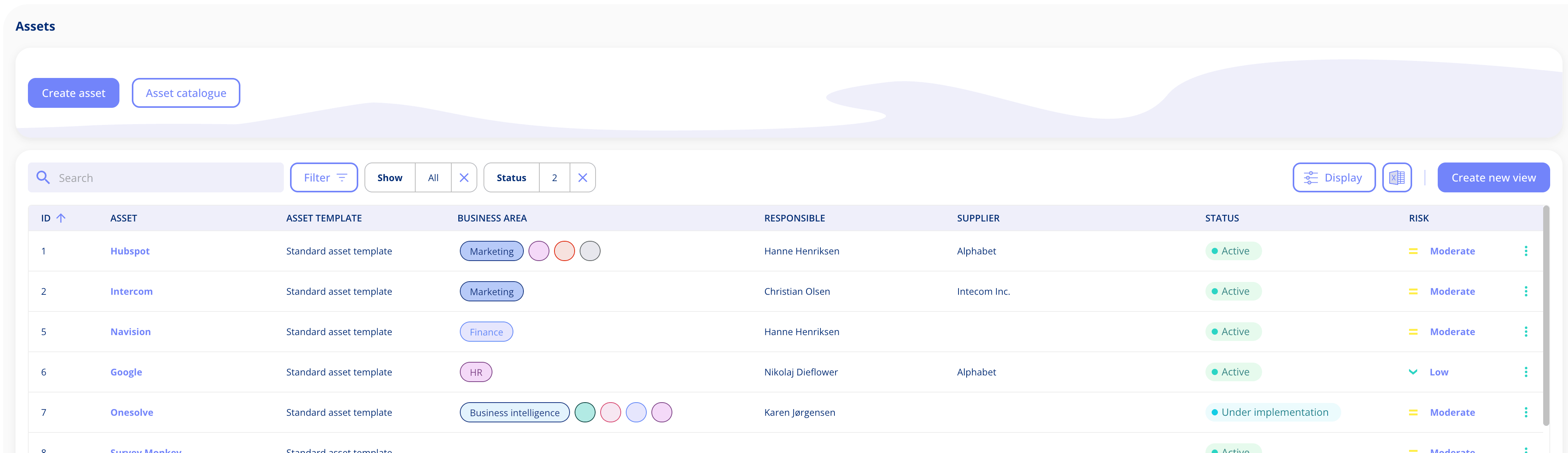
You can now filter, sort, and select which columns to display, and save custom views to come back to later. If you make changes to a view, you can save it as a new one or update the existing one. Read more about advanced filtering and custom views here.
To use custom views, you'll need the Custom Lists add-on. Read more about the add-on here.
All/Mine Toggle on Assets
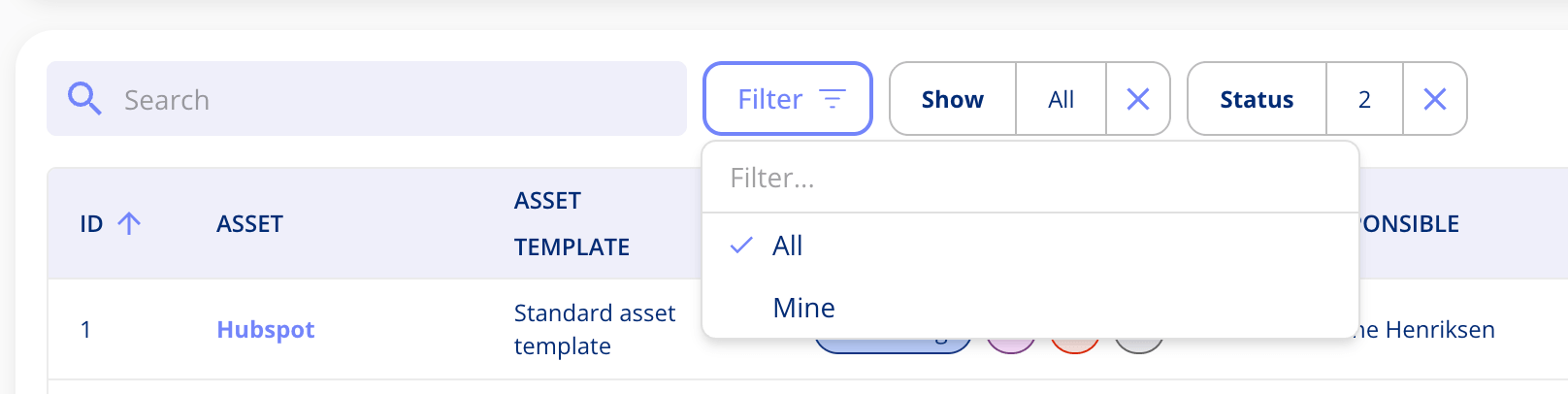
The former All/Mine toggle in the upper left corner of the assets overview has been replaced with a "Show" filter in the list itself. By default, all assets are shown. Switch it to "Mine" and the list will only show assets where you're the responsible person. It works exactly the same way as the toggle, but keeps all filtering in one place.
New Tabs on Assets: Suppliers and Processing Activities
Besides the Access tab, two new tabs have been added at the bottom of the asset detail view: Suppliers and Processing Activities.
The Suppliers tab shows the legal entities linked to the asset, including any subcontractors connected to your suppliers.

The Processing Activities tab lists which processing activities the asset is associated with, along with the responsible person, risk score, and business area for each one.

Add on: Templates and Custom Fields
Templates and custom fields for assets are part of the Templates & Custom Fields add-on, which previously covered contracts only. The add-on now extends to assets, with processing activities to follow. Read more about the add-on here.
Got Feedback?
We'd love to hear from you! Your input helps us keep improving the platform. Please don't hesitate to reach out to our support team with your thoughts, questions, or suggestions. 🚀
.png?width=352&height=198&name=Public%20API_Feature%20image%20(1).png)




.jpeg?width=131&height=26&name=right_people_logo%20(1).jpeg)

.jpg?width=58&height=26&name=Praktiserende%20L%C3%A6gers%20Organisation%20(1).jpg)
.jpg?width=108&height=26&name=finans%20danmark%20(1).jpg)


.jpg?width=89&height=26&name=klasselotteri%20(1).jpg)

-1.png?width=34&height=26&name=bws_shipping_rgb%20-%20Kopi%20(2)-1.png)



.jpeg?width=135&height=26&name=AH%20industries%20(1).jpeg)






.jpg?width=225&height=26&name=KAUFMANN%20(1).jpg)