
This release brings AI into your contract obligations, so you can find them automatically instead of adding each one by hand. We've also made it easier to link an obligation back to its source text, added calculated fields for contract templates, and tidied up how internal and external parties show up on a contract. Here's what's new.
Find obligations with AI
You can now let AI find obligations for you, straight from the documents on your contracts. Open a document on the contract, click the new "Find obligations with AI" icon at the top, and the system reads through the document looking for anything that could be an obligation. Where it finds one, it suggests a name, a description and any other details an obligation can hold.
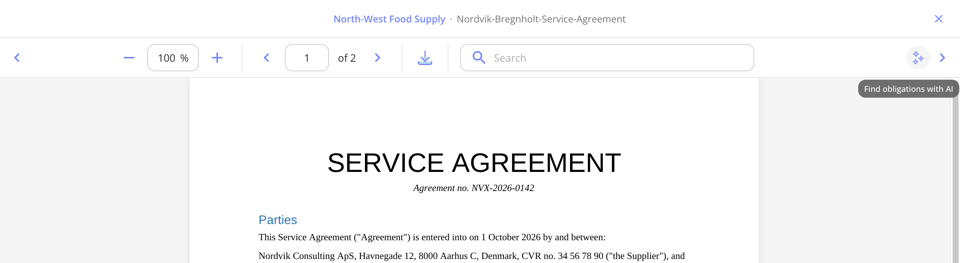
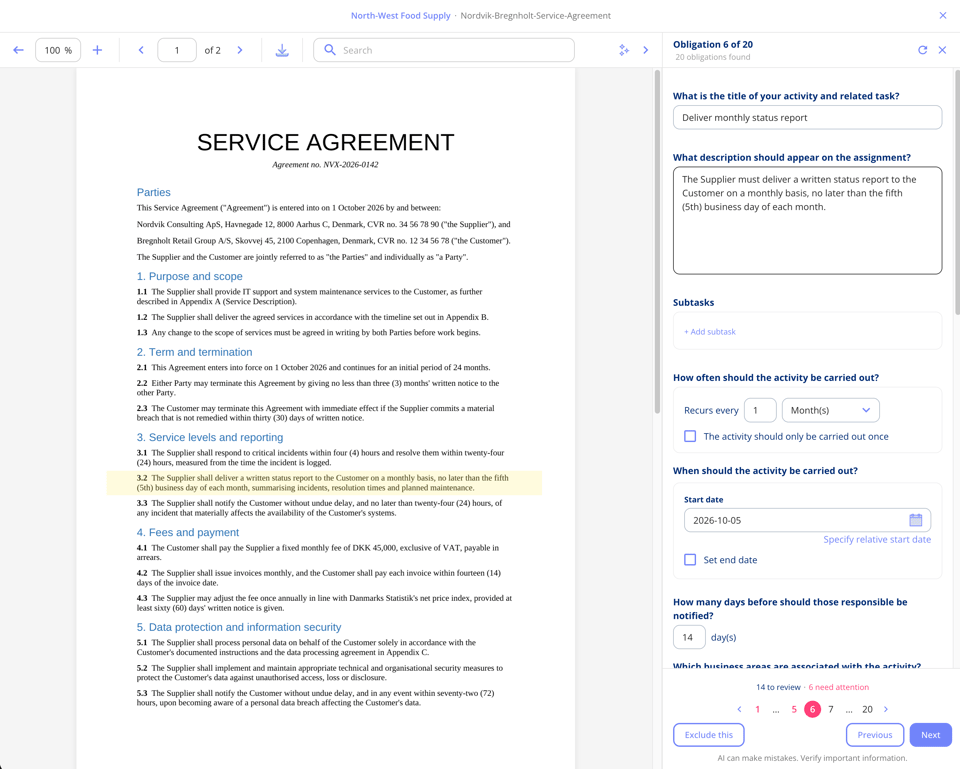
You stay in control throughout and can edit anything the AI suggests. Where a start date can be worked out from the text, it's filled in for you, but you'll always need to set the responsible person yourself. Before anything is created, you can click through each suggestion, adjust the description if needed, and decide whether to go ahead, or simply exclude any suggestion you don't want.
If the system suspects a suggestion might duplicate an obligation you already have, it flags this and leaves it out by default. You can still choose to create it anyway.
The same AI-powered search is also available directly from the obligations tab, where you can pick any document on the contract and run it through, without needing to open the document itself first.
This feature requires the "Contract Obligations" and "AI Features" add-ons.
Add document, section and clause text to obligation
When you create an obligation on a contract, you can now link it directly to where it comes from in the source document. Since a contract can have several documents attached, you start by choosing which one the obligation relates to, then add a section and the clause text itself.
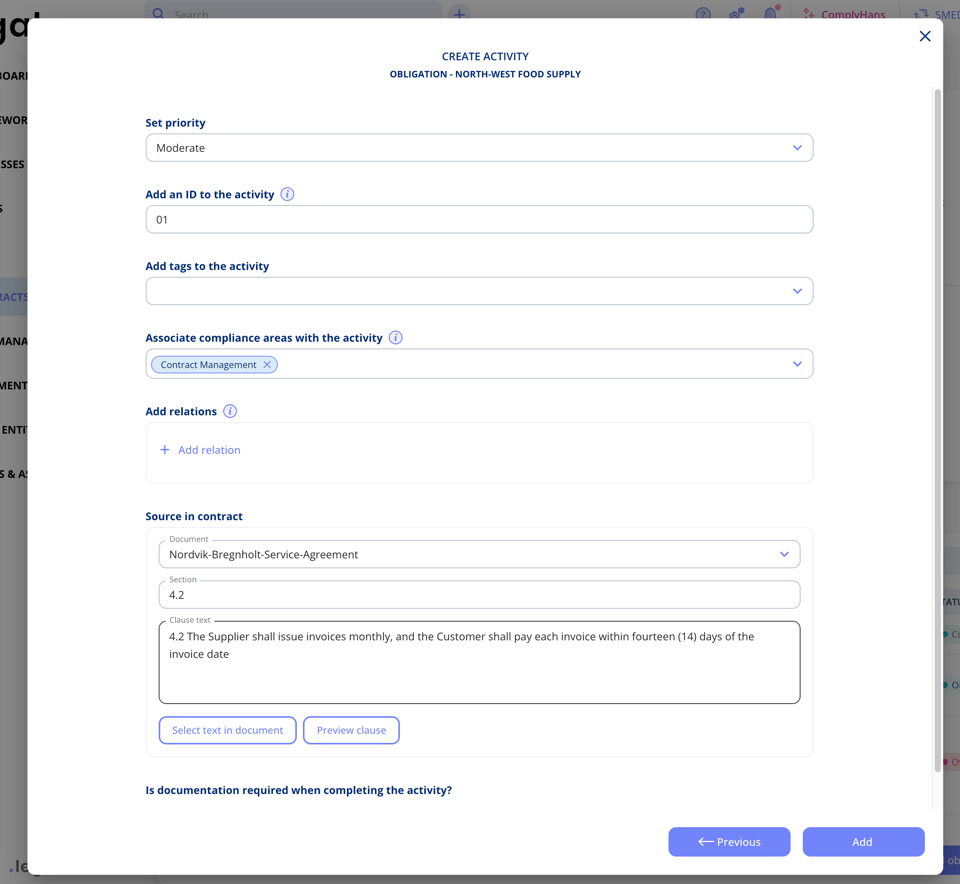
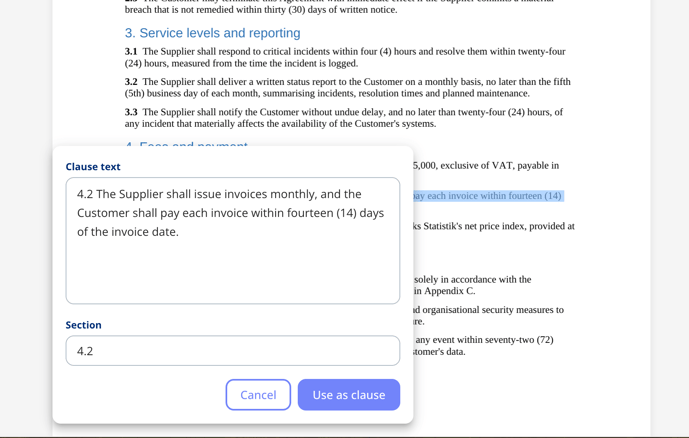
To make this quicker, we've added a "Select text in document" option. Mark the relevant passage in the document and choose "Use as clause", and the clause text field fills in automatically with your selection, along with a suggested section. From there, you can use "Preview clause" to see the document again with your selected text highlighted, so you can check it's the right one before saving.
This feature requires the "Contract Obligations" add-on.
Add calculated fields to contracts
You can now add a calculated field to your contract templates that automatically sums selected fields for you. Start by going to "Settings" > "Contract input fields" and adding a new input field. Give it a name, such as "Total value", and choose the type "Calculated field". Any description you add here will show up as an i-icon next to the field on the template, so it's a good place to explain what the field covers.
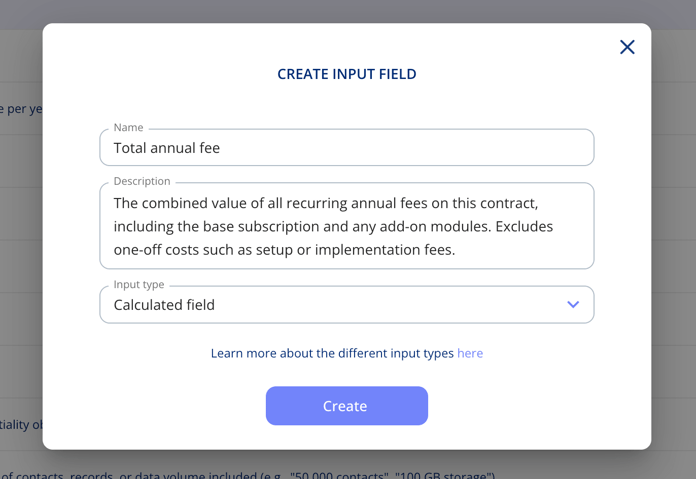
Once your field is ready, head to "Settings" > "Contract templates" and choose the template you want to add it to. Go to the relevant step in the template, click "Add field" and select your new field under "Custom fields" in the dropdown. You'll then be asked which fields it should sum, and you can choose freely among the amount fields already on the template.
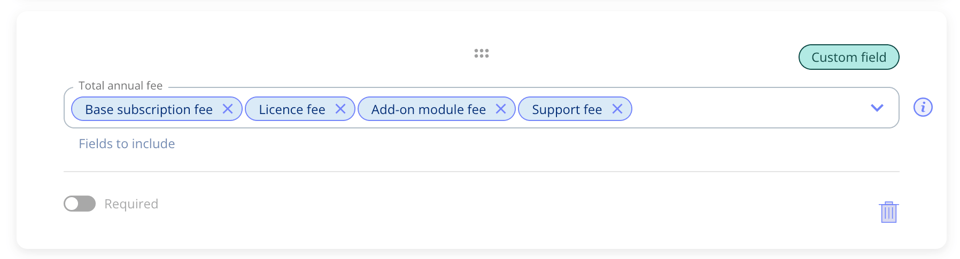
From here, the field is set up and will automatically total the amounts you selected, every time the template is used.

This feature requires the "Templates and Custom Fields" add-on.
New division of contract parties
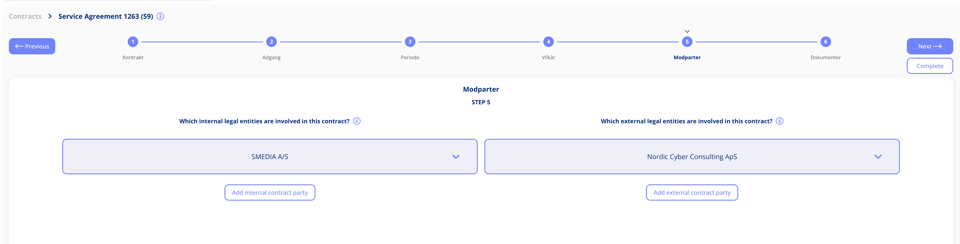
We've updated the "Contract parties" step in contract templates to make it clearer at a glance. Previously, internal and external contract parties appeared together in a single list, which could make it hard to tell them apart. Now they're split into two separate lists, "Which internal legal entities are involved in this contract?" and "Which external legal entities are involved in this contract?", so the distinction is clear from the start.
Got feedback?
We'd love to hear from you! Your input helps us keep improving the platform. Please don't hesitate to reach out to our support team with your thoughts, questions, or suggestions. 🚀





.jpeg?width=131&height=26&name=right_people_logo%20(1).jpeg)

.jpg?width=58&height=26&name=Praktiserende%20L%C3%A6gers%20Organisation%20(1).jpg)
.jpg?width=108&height=26&name=finans%20danmark%20(1).jpg)


.jpg?width=89&height=26&name=klasselotteri%20(1).jpg)

-1.png?width=34&height=26&name=bws_shipping_rgb%20-%20Kopi%20(2)-1.png)



.jpeg?width=135&height=26&name=AH%20industries%20(1).jpeg)






.jpg?width=225&height=26&name=KAUFMANN%20(1).jpg)




